 ForgeVPS
The ForgeVPS workspace
Your VPS terminal. In your browser.
Access your VPS terminal from a browser with ForgeVPS. Run commands, use Claude Code or Codex CLI, and return to persistent terminal sessions.
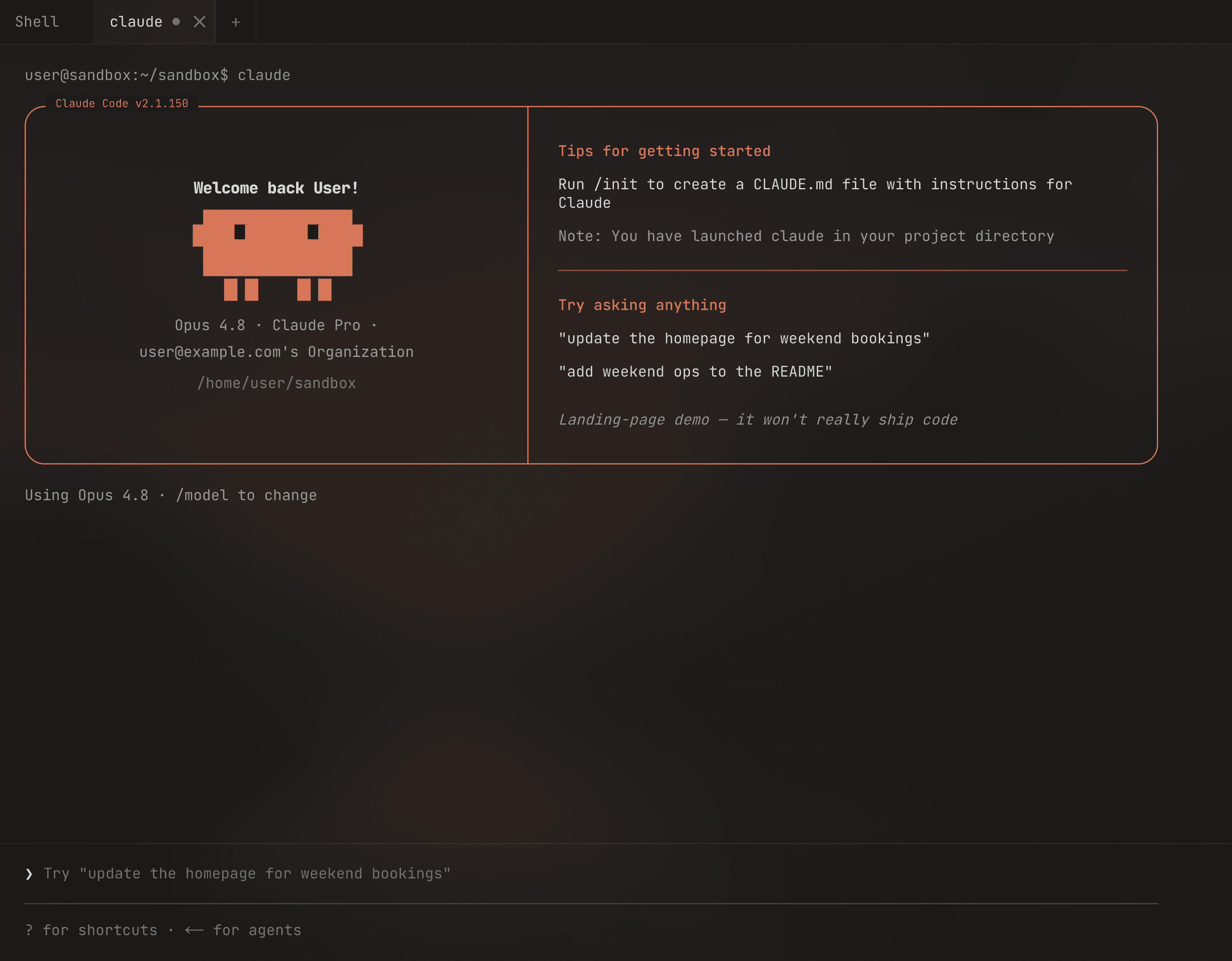
A web terminal connected to your server
A browser SSH terminal gives you a command line on a remote server without installing an SSH client on the device in front of you. In ForgeVPS, you choose a connected VPS and open Terminal. Commands run on that VPS, alongside its files and development tools.
Check a build, work on a project, or use a command-line coding assistant. Your computer or phone displays the terminal; the server supplies the working directory and running processes. ForgeVPS brings the file browser and code editor into the same workspace.
Connect, open a terminal, start working
- Connect a VPS. Sign in to ForgeVPS and add your machine using its server address and the SSH connection instructions. You need a supported Ubuntu or Debian server and administrative access. If you are starting from scratch, follow the first VPS guide.
- Check the terminal requirement. ForgeVPS uses tmux on the server. If Terminal reports that tmux is missing, install it or enable Workspace tools where that setup option is available. Review any setup changes before applying them to an existing server.
- Choose Terminal. Start with the read-only commands below to identify your server user and working directory. Open a separate terminal tab when you want another shell.
whoami
pwd
ls
These commands show your user, current directory, and its entries. They do not install software or change your files. ForgeVPS currently uses root-backed server access, so subsequent commands can affect the whole machine.
Run Claude Code or Codex CLI
Both assistants can run as command-line tools on your VPS. Install and authenticate the tool you choose, then start it inside your project directory. ForgeVPS supplies browser access to that terminal; your assistant account and usage are separate.
- Run Claude Code on a VPS: installation, remote browser sign-in, a first file, and returning from your phone.
- Run Codex CLI on a VPS: installation, device authentication, project setup, and session recovery.
Return to a terminal from another device
Terminal tabs are backed by tmux sessions on the VPS. Closing the browser ordinarily leaves that server-side session running. Sign back in, choose the same machine, and reopen the existing terminal tab.
Closing a terminal tab inside ForgeVPS ends its session. A server reboot or process failure can also end work. An assistant may pause for your approval, so an open session does not guarantee unattended progress.
When is a browser terminal useful?
It fits quick server checks from another computer, returning to a running task from your phone, and projects whose dependencies already live on a VPS. A larger screen and physical keyboard remain more comfortable for long editing sessions.
If you already work happily in a desktop SSH client, that remains a valid choice. See our comparison of browser terminals, browser IDEs, and Remote SSH to choose an interface for the work you do.
Common questions
Is this a Linux desktop in the browser?
No. ForgeVPS provides a terminal, files, a code editor, and server tools. It does not stream a full desktop environment.
Does ForgeVPS include a VPS or an AI subscription?
You bring your server and your own Claude or OpenAI access. Those services have their own account requirements and charges.
Do I need to expose a terminal port publicly?
The hosted workspace reaches your machine over SSH. You do not need to publish a separate shell web server for this workflow. Keep your SSH connection and ForgeVPS account available, and follow the connection instructions for your chosen setup.