Use a terminal and AI
Run commands, Claude Code, or Codex CLI in separate tabs. Use your own AI account.
Explore the browser terminal →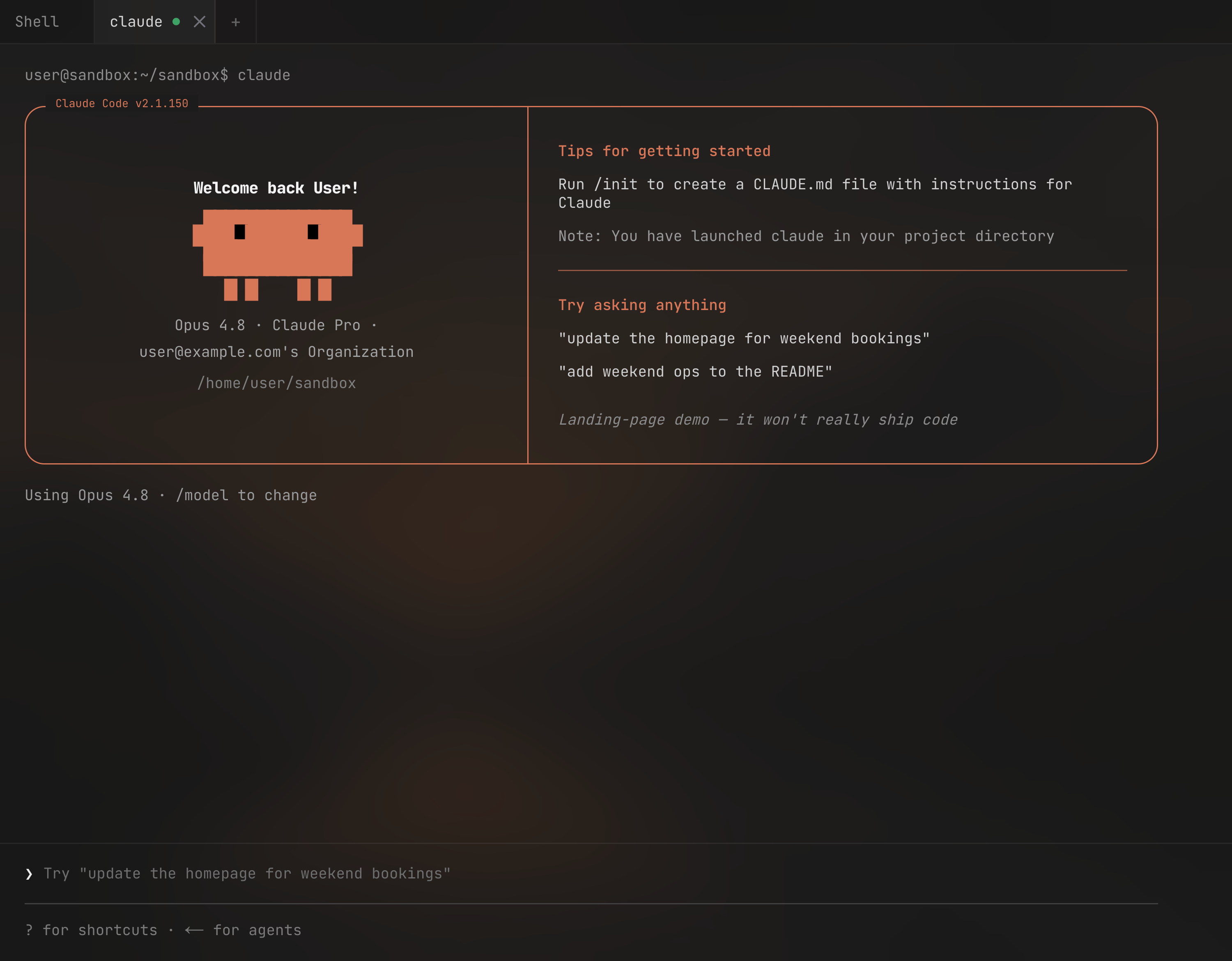
Your terminal, code, files and databases. Together in your browser.
A terminal on your VPS, right in your browser. Run Claude Code, install tools, and keep sessions running when you close your laptop.
Auto tour · choose any tool aboveSample data · view-only preview
Open your VPS terminal and paste this command.
curl -fsS https://app.forgevps.com/install | sudo shOpen the link printed in your terminal. Sign in with your lifetime account, or buy access there.
The installer gives you an HTTPS address. Open it, create your local account, and you’re in.
Setting up a VPS by hand can take over an hour. Connect yours and ForgeVPS installs the tools, database, web server, and firewall for you.
Run commands, Claude Code, or Codex CLI in separate tabs. Use your own AI account.
Explore the browser terminal →Browse folders, edit code, and upload files. Save changes straight to your VPS.
Explore the code editor →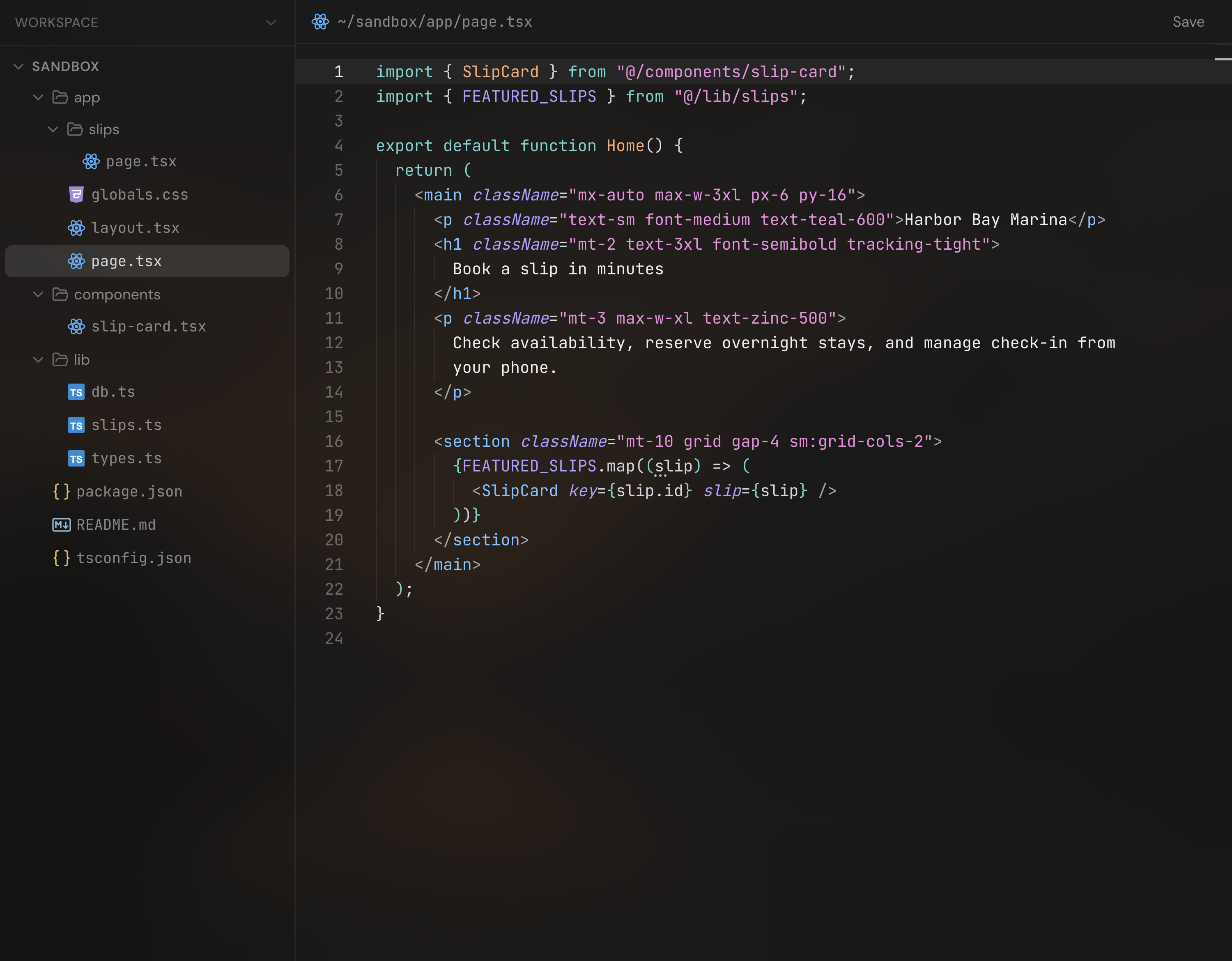
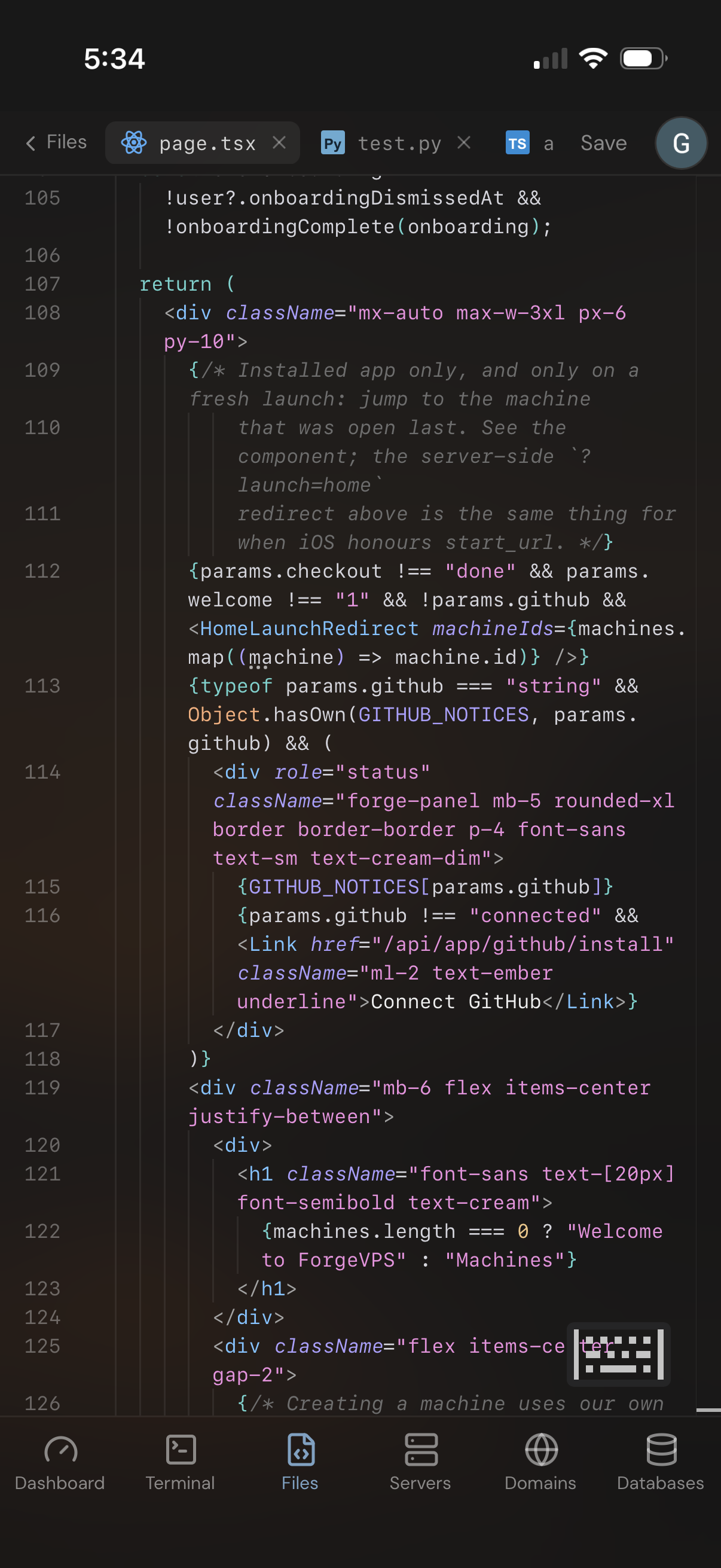
Create PostgreSQL databases, edit table rows, and create or download backups.
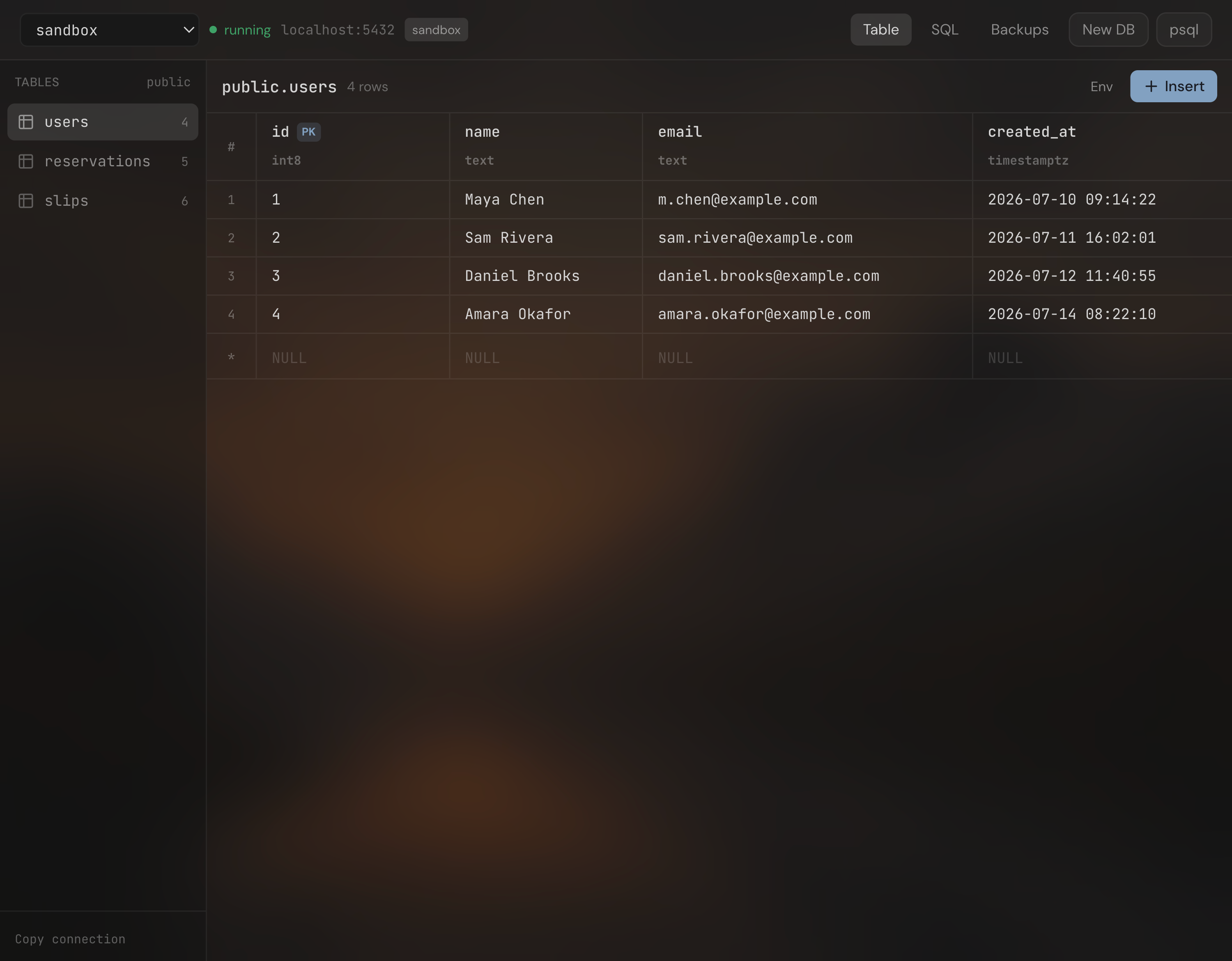
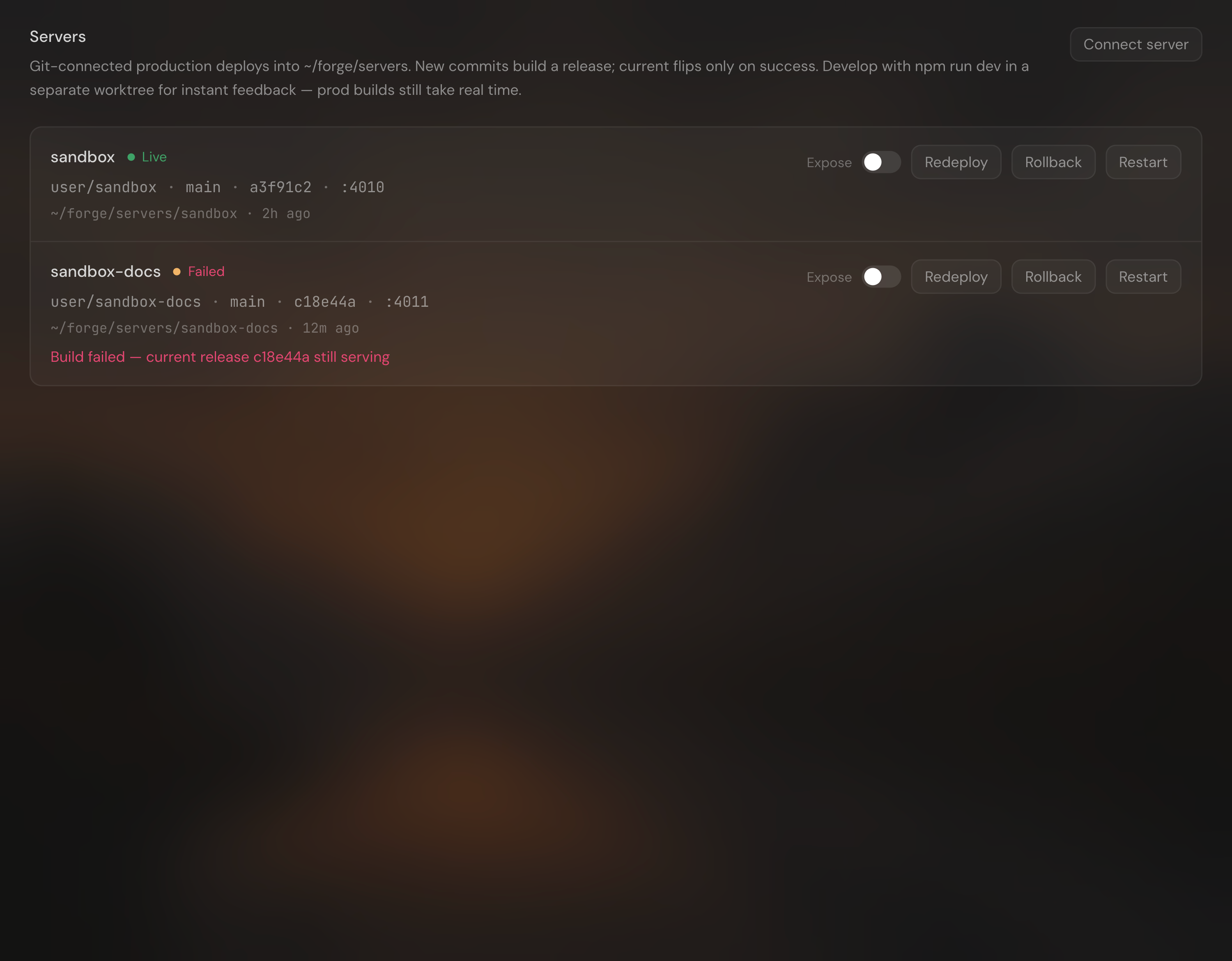
Deploy from GitHub or host a static folder. Read logs, add domains, and get HTTPS.
Put your VPS to work
Explore the workspace, follow a walkthrough, or compare ways to work on your server.
Access your VPS terminal from a browser with ForgeVPS. Run commands, use Claude Code or Codex CLI, and return to persistent terminal sessions.
Code editorCreate, edit, save, rename, and delete files on your VPS from your browser. Manage project folders and upload files in the ForgeVPS code editor.
Claude CodeInstall Claude Code on a VPS, complete remote sign-in, and open the same terminal from your phone. A practical ForgeVPS walkthrough with troubleshooting.
Codex CLIInstall OpenAI Codex CLI on a VPS, sign in with device authentication, and work from a browser terminal. Includes phone access and session recovery.
Compare workflowsCompare ForgeVPS, browser SSH terminals, code-server, and VS Code Remote SSH by workflow, setup, and browser access. Find the right fit for your VPS.
Deploy your appDeploy an app built with Claude Code or Codex CLI on a VPS. Follow a working Node.js example through GitHub deployment, environment variables, and HTTPS.
Multiple appsRun multiple web apps on one VPS with separate ports, domains, and environment settings. A practical ForgeVPS guide to deployment and shared resources.
Deployment fixesTroubleshoot failed VPS deployments in ForgeVPS: dependency installs, builds, startup errors, ports, environment variables, domains, and code rollbacks.
PostgreSQL backupsCreate, download, and restore a PostgreSQL backup in ForgeVPS. Use a disposable database to verify recovery before restoring real application data.
Terminal, code editor, databases and apps. One workspace for your servers, hosted by us or installed on your VPS.
VPS hosting, domains, and paid AI plans are separate.
Hosted and self-hosted.
Unlimited machines and installations.
Lifetime updates.
Have another question?
Get in touch
Yes. One $9.99 purchase includes hosted ForgeVPS, unlimited self-hosted installations, and lifetime updates. Existing lifetime customers keep their access, including previously granted free lifetime plans.
Not currently. ForgeVPS is $9.99 once for lifetime access to both hosted and self-hosted. Explore the workspace demo above to see how it works before buying.
Sign in and choose hosted or self-hosted. Connect your VPS to the hosted workspace, or run one command to install ForgeVPS on your own server. The same purchase includes both.
A computer you rent online. It runs your apps and websites even when your laptop is off. ForgeVPS adds a workspace you can open in your browser.
No. The $9.99 buys lifetime access to ForgeVPS, not a server. You pay your VPS provider separately. Domains and paid AI plans are separate too.
ForgeVPS supports Ubuntu and Debian VPSs. Hosted guided setup uses root access and configures system tools. Both hosting options use root for terminal commands, files and server management.
You sign in and validate lifetime access for installation and updates. After installation, your workspace runs on your VPS with local sign-in. ForgeVPS.com does not route its terminal or file connections, and an outage here does not stop the installed workspace.
You don’t need to type commands to browse files or manage an app. Building and fixing apps may still take some coding. A full terminal is there when you need it.
There’s no monthly fee for ForgeVPS. You pay once for lifetime access. Your VPS provider and any paid AI tools may have their own monthly fees.
Your apps keep running on your VPS. Your files and data stay there too, and you keep direct access to your server through SSH.